At ready motion control we use 2 different tools to generate G-Code for your CNC control. Depending on what you want to do. Used for Laser and Plasma operations: Inkscape with our Ready Motion Plug-in This plug in has been fully
The Ready Motion Controller how to videos scroll though to learn! Introduction to the Ready Motion Controller Ready Motion Controller Relay Board Generate G Code From Inkscape & Install Inkscape Extentions Use G10 and G54 – G59 to set
The software is built into the Ready Motion System. The User Interface is networked based so you can access the motion controller from a computer, phone or tablet using any operating system you want as long as there is a web browser.
Ready Motion Plug-In and Instructions
1. If you don’t already have Inkscape. Download and install Inkscape from https://inkscape.org/en/ note: If you are importing into inkscape and need exact dimensions, version 0.91 will work. Version 0.92 has a scaling error when importing svg’s.
3. Put the contents of this .zip folder into the “inkscape\share\extensions” folder. Once it is there reboot inkscape and it will show up under the “extensions” tab in inkscape. note: if using Ubuntu or another Linux flavor open a terminal and type “sudo nautilus” to open a file explorer with admin rights.
HOW TO:
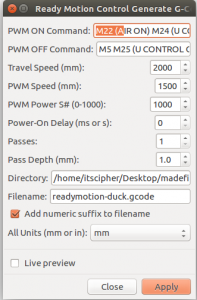
PWM ON COMMAND: Add any G-Code or M-Code commands here to start your working mode travel on the CNC. PWM OFF COMAND: Add any G-Code or M-Code commands here to end your working mode travel on the CNC. TRAVEL SPEED: The speed of the machine when the CNC is off working mode (mm/min). PWM SPEED: The speed of the machine when the CNC is working mode (mm/min). POWER ON DELAY: Used to delay from PWN ON COMMAND to the first movement. PASSES: The Number of times to repeat the cycle. PASS DEPTH:Z axis moves down by this amount for each pass. DIRECTORY: Where to store the file generated. FILENAME: The name of the generated file. ADD NUMERIC SUFFIX: Add a number to the end of the file name so when the file is regenerated it wont copy over. ALL UNITS: The unit to generate the G-Code LIVE PREVIEW: Draw out the generation
Video using the Inkscape with the Ready Motion Plug-In